OpenCms
knowledge base
Moving pages
1. You can move around pages in OpenCms without creating broken links. When pages are moved as described below, internal link URLs are updated accordingly (links from third party websites to specific pages will need to be updated though).
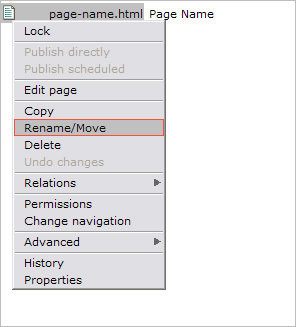
2. To move a page, left-click the page icon and select Rename/Move from the drop down menu.
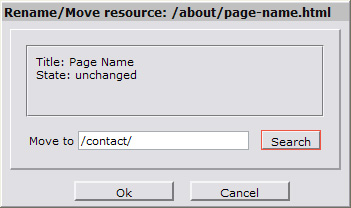
3. In the dialogue that appears click Search to open the website navigation structure.
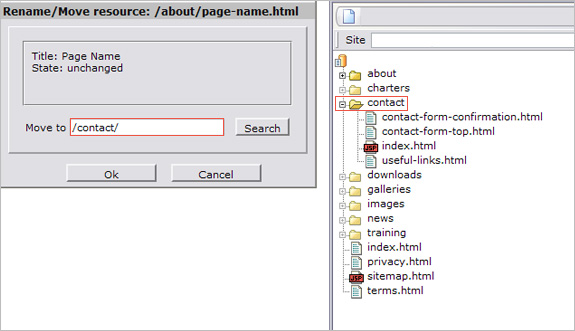
4. Next, click the folder or sub folder where you would like to relocate the file.
Hint
You can only move a page to a folder or sub folder. If you click on an HTML file directly, an error message will appear.
5. The link on the left will update accordingly. Press OK.
6. When you open the folder in question, you will find that the page has been relocated:
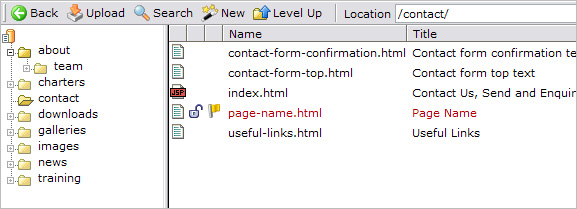
7. Preview the page and test the navigation menu at the top to ensure the navigation order is still correct for that folder. If necessary, edit the navigation order for that file in the page Properties (left-click the file icon and selet Properties from the drop down).
8. Publish ( ) changes.